Applies to: vehicles with navigation system
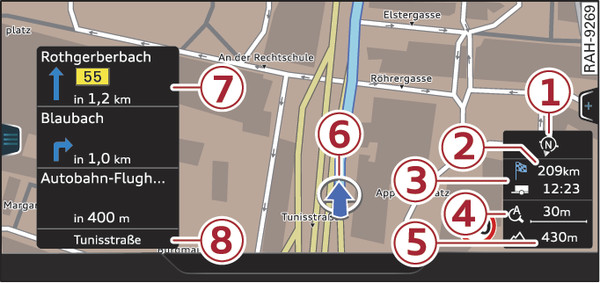
- Fig. 225 Example: Standard map with crosshairs switched off
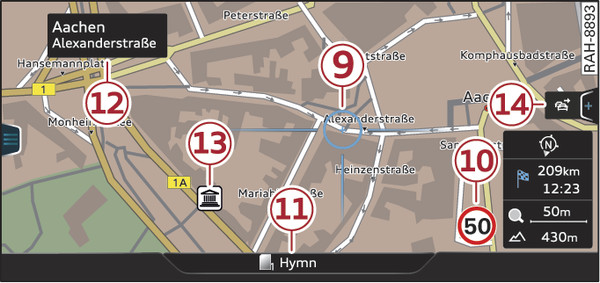
- Fig. 226 Example: Standard map with crosshairs switched on
Press the NAV/MAP button repeatedly until the map is displayed Fig. 225►.
Zooming in/out on map
- Turn the rotary pushbutton clockwise or anti-clockwise. You can also zoom in or out on the map using the MMI touch pad* link► if you have activated the crosshairs. Or: Scroll the left thumbwheel on the multi-function steering wheel* link►.
Switching the crosshairs on/off
- To switch on the crosshairs: Press the rotary pushbutton while the map is displayed Fig. 225►.
- To switch off the crosshairs: Press the BACK button.
With the crosshairs switched off Fig. 225►:
| -1- | Orientation. For more information, please refer to link►. |
| -2- | Distance to destination and estimated time of arrival. |
| -3- | When the trailer mode function is switched on  , a corresponding symbol is shown next to the arrival time. , a corresponding symbol is shown next to the arrival time. |
| -4- | Scale: Turn the rotary pushbutton clockwise/anti-clockwise to zoom in or out. When the Automatic zoom function is switched on , an “A” for “automatic” is shown in the zoom symbol. |
| -5- | Altitude |
| -6- | Location of the vehicle |
| -7- | Route information: Various information is displayed during route guidance (e.g. the upcoming manoeuvre including the calculated distance and road name, or hazard alerts*). Traffic information or special destinations on your current route are also displayed. |
| -8- | Road the vehicle is currently on |
With the crosshairs switched on Fig. 226►:
| -9- | The crosshairs: Move the crosshairs in the desired direction using the MMI touch pad*/rotary pushbutton and select an item on the map as the destination. If the crosshairs are switched off, the road you are currently on will be displayed. |
| -10- | Speed display1): Display of the maximum speed limit on motorways, dual carriageways and other major roads. |
| -11- | Entertainment drawer*: Refer to link►. |
| -12- | Additional information on the position of the crosshairs: If you move the crosshairs onto a point on the map, any existing information on the current position will be displayed. Tap the MMI touch pad. Or: Press the rotary pushbutton. From the destination details, you can start route guidance to the location displayed. Select and confirm Start route guidance. |
| -13- | Map content (special destinations, favourites). If several special destinations are located close to each other, their symbols are stacked on the map. |
| -14- | Better route  : If a better route is available for the current route guidance, this will be shown on the map together with the time saved. Further information can be found from link► onwards. : If a better route is available for the current route guidance, this will be shown on the map together with the time saved. Further information can be found from link► onwards. |
Note
Whether the level of congestion is taken into account when the route is being calculated depends on your traffic avoidance settings link►.